Computer Tutorials | Infotech | Software | Games | Ebook | Tips & Trick Blogger


Showing posts with label Windows. Show all posts

Cara Menghapus Data Backup Drive Local Disk C

Dulu saya pernah iseng-iseng backup drive C, saat sudah selesai backup saya lihat drive D saya langsung penuh, tetapi pada akhirnya saya bisa lagi mengembalikannya, kapasitas bebas drive D kembali seperti semula.

Apakah anda mengalami seperti saya?, jika mengalaminya saya akan kasih tau cara menghapus data backup Drive C, mudah saja:
1. Buka Computer
2. Masuk ke Drive D
3. Hapus folder WindowsImageBackup
4. Selesai

Gampang banget kan?
Jika tidak bisa menghapus foldernya, gunakan Unlocker, download disini, pilih 32 Bit atau 64 Bit, Sesuai dengan PC anda.

Windows Loader 2.1.2 Daz

Mungkin sudah sebagian besar tahu, bahwa Windows Loader 2.1.2 adalah sebuah tool yang berguna untuk aktivasi Windows 7, Vista, dan Windows Server 2008 yang masih dalam keadaan trial. Windows  Loader ini akan membuat windows kita menjadi seakan-akan genuine. Cara penggunaannya juga sangatlah mudah, jadi saya yakin semua orang bisa melakukannya.


Screenshoot :

Cara Penggunaan :
1. Pastikan windows anda masih benar-benar trial
2. Jalankan Windows Loader
3. Klik tab menu profile, lalu tentukan sesuai dengan merek Laptop/PC masing-masing. Jika merek tidak ada,  lanjut ke langkah berikutnya.
4. Kembali ke tab menu installation, lalu klik install.
5. Biarkan Laptop/PC anda restart

Download :


#Tested 100% Working
Axioo Neon MNV

Comfort On-Screen Keyboard 5.1.4.0 Pro incl. Patch

Comfort On-Screen Keyboard 5.1.4.0 Pro + Patch, ada yang belum tau software ini? Comfort On-Screen Keyboard 5.1.4.0 Pro merupakan software virtual keyboard yang tentu saja gunanya sama dengan Keyboard pada umumnya, hanya saja Comfort On-Screen Keyboard 5.1.4.0 Pro ini ditampilkan secara virtual, sehingga penggunaannya harus di klik pakai mouse atau dengan layar sentuh misalnya.


Screenshot :


Software ini biasanya saya pakai di Warnet untuk mencegah terjadinya Logger yang marak terjadi di Warnet-warnet. hehehe,, Lumayan lah, bisa meminimalisir resiko akun tercuri walaupun tidak menjamin 100%.

Download :


# Tested : Windows 7 32 bit, Windows 7 64 Bit


Semoga Bermanfaat
^_^

Cara Mengatasi Appcrash Pada Windows 7


Cara Mengatasi Appcrash Pada Windows 7 - Berikut ini kami posting tentang apa saja yang menyebabkan komputer dengan sistem operasi Windows 7 mengalami appcrash dan cara mengatasinya :
  1. APPCRASH terjadi akibat adanya kerusakan yang terjadi didalam system aplikasi mu, seperti yang terjadi di dalam operating system (windows 7). Hal ini terjadi karena ada sebagian aplikasi yang dipaksa masuk kedalam kekomputer, namun tidak compatible dengan sistem operasi tersebut.
  2. Terinfeksinya system operasi windows dengan virus, hal ini membuat beberapa komponen penting dalam windows 7 rusak, dan akan membuat satu/semua aplikasi komputer mu tidak dapat dijalankan. 

Bagaimana Solusi Mengatasi Appcrash Pada Windows 7 ?
  1. Lakukan update software kepada masing-masing aplikasi yang terkena appcrash, atau kamu juga bisa menginstall kembali aplikasi dengan versi diatasnya.
  2. Gunakan aplikasi maintence system seperti tune up utility, advanced system care, atau PC Tuning untuk membantu bilamana ada bagian/komponen pada windows 7 yang rusak/ hilang
  3. Sering lakukan recovery data, hal ini dimaksud apabila suatu saat windows kamu terkena appcrash, maka akan dengan mudah dapat dikembalikan ke- keadaan sewaktu di recovery.
  4. Repair windows menggunakan kaset windows bawaan (biasanya kalau kaset bajakan ada tuh kaset repair yang udah ditanam dengan windows 7 nya) hehe
  5. Ini merupakan solusi terakhir, yaitu lakukan install ulang windows. 

Menggerakkan Kursor Tanpa Mouse

Bagi anda yang belum membaca ini pasti merasa aneh dengan tips kami kali ini, bagaimana bisa menggerakkan kursor tanpa mouse? Tapi dengan tips ini anda bisa membuktikannya.

Berikut ini langkah-langkahnya Menggerakkan Kursor Tanpa Mouse :

1. Tekan tombol ALT + Shift + NumLock secara bersamaan.
2. Setelah muncul  windows MouseKeys, kemudian klik tombol Settings dan beri tanda centang pada pilihan Use MouseKeys.

Nah sampai disini fungsi mousekeys sudah aktif.
Silahkan coba menggerakkan kursor menggunakan tombol-tombol angka di keypad numerik. Angka 1, 2, 3, 4, 6, 7, 8, dan 9 digunakan untuk menggerakkan kursor ke atas, bawah, samping kanan/kiri, dan ke arah diagonal. Sedangkan angka 5 berfungsi seperti tombol “klik” pada mouse. Dan untuk “drag & drop” gunakan kombinasi angka dengan tombol “Insert”.

Semoga bermanfaat!

Windows: The Official Magazine - February 2012


Download
Windows: The Official Magazine - February 2012 :

Click Here

or

Windows Optimal Settings - How to Remove Windows Optimal Settings Completely


Windows Optimal Settings belongs to the classification of rogue software. Windows Optimal Settings will scan your computer automatically and give out a report showing that there are several problems in your computer. To making users believe the fake system analysis report, Windows Optimal Settings will cause various problems by deleting real system files or modifying windows registry.

You must be wondering how Windows Optimal Settings infected your computer. Usually, Windows Optimal Settings is installed by some trojan, which will produce fake error message and recommend a program to fix the errors. Some users may think the error message is produced by windows system. Once you click on the link, Windows Optimal Settings will be downloaded to your system. In a few causes, Windows Optimal Settings is inrtoduced to the compromising computer by malicious codes.

Windows Optimal Settings can run automatically at windows startup. Once started, it will display tremendous error messages no matter when you are about to run a program or delete a file. Windows Optimal Settings will then prompt you to scan your computer. If you try to use Windows Optimal Settings to fix the errors, you will be informed that you have to purchase the program at first. The fact is Windows Optimal Settings is a fake system fixer tool and it can bring no benefit. Its only purpose is to mass up your system and cheat your money.

You must remove Windows Optimal Settings as soon as possible.

How to remove Windows Optimal Settings easily?

Using a spyware removal tool is surely the easiest way to get rid of Windows Optimal Settings. If you already have one in your system, follow the below step to remove Windows Optimal Settings now.

1. Enter Safe Mode (if your spyware removal needs networking, you should enter Safe Mode with Networking)

2. Open Task Manager to end Windows Optimal Settings process if the rogue software can automatically run at safe Mode.

3. Run a scan and remove detected files

4. Clean up temporary files

5. Clean up windows registry to make sure that Windows Optimal Settings does not leave some entries or it can easily get back to your computer.

Notes: The 5th step is option and depends on whether your spyware removal can clean up registry. The key in those steps is to block Windows Optimal Settings from running at first and the most important point is whether your spyware removal program can detect Windows Optimal Settings. If you encounter with problem in either of these two steps, you have another alternative.

Recommended Windows Optimal Settings removal tool

A couple of anti spyware programs on the market have tested to be able to remove Windows Optimal Settings completely. Comparing their comprehensive strength including prise, we recommend you to use PC Safe Doctor to remove Windows Optimal Settings. This specialized spyware removal tool can remove Windows Optimal Settings safely and completely.

The issue is urgent as your computer may finally be taken control by a remote party especially if you have already purchase Windows Optimal Settings. Moreover, if you find some manual way to remove the rogue software, you'd better not to have a try. Removing Windows Optimal Settings manually involves lots of PC skills and technical knowledge.

Read more: articlesbase.com

How to Unlock a Locked Out User Account in Windows 7

Normally the account lockout duration security setting determines the number of minutes a locked out account remains locked out before automatically becoming unlocked. If the account lockout duration is set to 0 minutes, then a locked out user account will be locked out until an administrator manually unlocks that locked out user account.

This will show you how to manually unlock a user account that was locked out when it reached it's account lockout threshold of invalid logon attempts.

Warning:
You will only be able to do this while logged in as an administrator.

Locked Out User Account
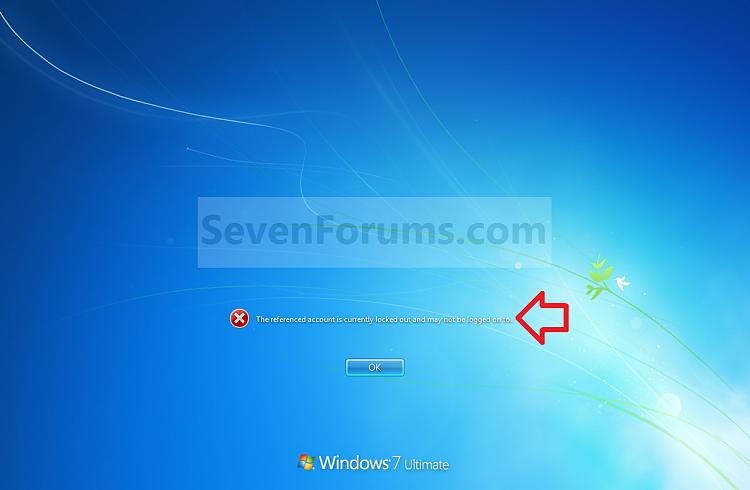
NOTE: This is the locked out message a user will get if they reach the account lockout threshold number of invalid logon attempts.

Account Lockout - Unlock a Locked Out User Account-logon_screen.jpg

Here's How:
1. Open the Local Users and Groups manager.
2. In the left pane, select Users. (see screenshot below)

Account Lockout - Unlock a Locked Out User Account-lock1.jpg

3. In the right pane under the Name column, double click on the locked out user account. (see screenshot above)
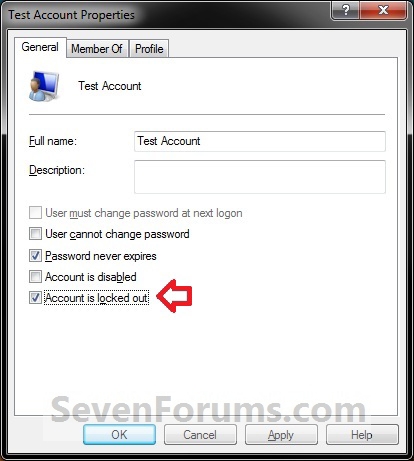
4. Uncheck the Account is locked out box, and click on OK. (see screenshots below)

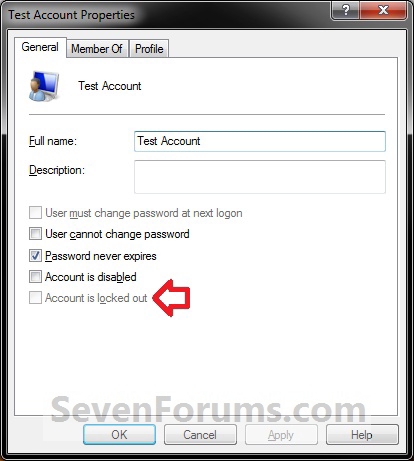
NOTE: If the Account is locked out option is grayed out, then the selected user account is not locked out.

Account Lockout - Unlock a Locked Out User Account-lock2.jpg

Account Lockout - Unlock a Locked Out User Account-lock3.jpg

5. Close the Local Users and Groups manager.

Source: sevenforums

Improve Windows Vista & Windows 7 Performance: Advanced Performance Tools

So, you’ve turned off the Aero interface, changed your power settings, adjusted indexing, reduced the number of startup programs, and cleaned the hard disk. All of these tasks can improve Vista performance, but what if you want to take your tweaking to the next level? There’s more you can do to improve Vista’s speed.

Go into the Control Panel and click on Performance Information and Tools. In the Task pane, click on Advanced Tools. Here you’ll find some neat options for improving Vista’s performance. First, Windows will list any performance issues that it has encountered under the Performance Issues section. Follow the links to correct these issues.

Once you’ve addressed any known performance issues, go back to the Advanced Tools screen and explore the following links:
• View performance details in Event log – The Event log is a vast database detailing all “events” that have occurred on your Vista computer over time. Browse the information here in search for patterns and clues to poor performance.

• Open Reliability and Performance Monitor – This monitor gives you a graphical, real-time view of your computer’s performance including: CPU, disk, network, and memory performance. Click on the Reliability Monitor link to view a graphical chart detailing your system’s stability over time. Click on a date and view application, hardware, and Windows failures for that date.

• Open Task Manager – The Task Manager shows you every application and process running on your computer at the moment. It also provides you with CPU and memory usage information.

• View advanced system details in System Information – This link takes you to a display listing everything that you could ever imagine about your computer. If you’ve ever wondered what type and version of BIOS your computer has or which service pack and build your copy of Vista has running, this is the place to go.

• Adjust the appearance and performance of Windows – Follow this link to adjust visual effects, page file size, and data execution prevention.

• Open Disk Defragmenter – The Disk Defragmenter tool is used for re-packing the files on your hard disk. Over time, individual files are broken up into smaller files and pieced together by Windows as needed. When the disk becomes excessively defragmented, all of this piecing files back together takes time and sluggish performance is the result. Run the Disk Defragmenter weekly for the best results.

• Generate a System Health Report – Of all the tools listed in Advanced Tools, the System Health Report is the most useful. Click this link and wait for the System Health Report to be generated. Not only will you learn about the status of your Vista computer’s hardware, resources, processes, and response times, the report also lists suggestions for improving performance as well as displays test results for diagnostic operating system, disk, security, system services, and hardware and device driver checks.

Source: vista4beginners

How to Partition and Format Hard Drives in Windows

A hard disk partition defines the storage space on your hard drive. This process allows you to make smaller, yet more logical, hard disks. Formatting the hard drive defines the kind of file system you will need to access your hard drives and partitions.

Creating and formatting a partition in Windows

Before you can create a partition on your hard drive in Windows, you will need to install an unused hard disk or must have ample unpartitioned space availabe on your existing hard drive. You can also opt to delete an existing partition to create a new one. In this tutorial, I will partition and format the unused space from one of my hard drives. The steps here will also work with hard disks with partitions which have been previously deleted; as well as with brand new hard drives.

Follow the steps to open the Disk Management Administrative Tool to access hard disk tasks:

  1. Click on the START button and select the CONTROL PANEL. If you do not have this shortcut on the START menu, open MY COMPUTER and click on the CONTROL PANEL.
  2. Double-click on the ADMINISTRATIVE TOOLS icon and open COMPUTER MANAGEMENT.
  3. If the CONTROL PANEL is in Category view, click on PERFORMANCE AND MAINTENANCE, then click on ADMINISTRATIVE TOOLS, and lastly double-click on the COMPUTER MANAGEMENT icon.
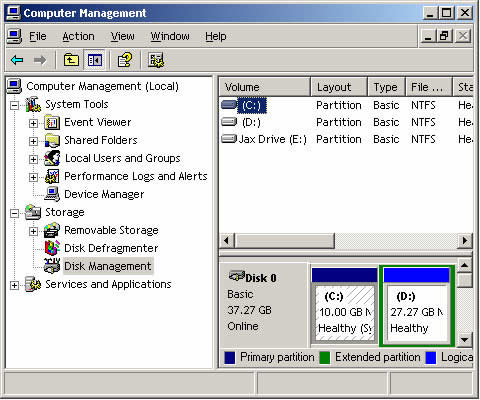
  4. Once the COMPUTER MANAGEMENT screen opens, just click on the DISK MANAGEMENT option; it is under the STORAGE category. A screen similar to the one below will appear.


In the disk management tool, you will see a listing of all your hard drives and how they are partitioned. The image above shows that I have two hard disks installed. The first disk, or DISC 0, has two partitions. Drive letter C has 24 GB NTFS, while Drive letter E has 87 GB NTFS. These drive letters were assigned during a previous partition. In the second drive, there is only one partition, which is the D: partition. There is 26 GB of unallocated and therefore useable space that can be used to make other partitions.

From the unused space, you can make a partition by following the steps below.
  1. Right click on the unallocated space.
  2. A new menu will come up, click on the NEW PARTITION option.
  3. A wizard on how you would like the partition to be created will open. On the first screen, press NEXT.
  4. On the second screen, you will be made to choose between a primary or extended partition. Detailed information about these kinds of partitions can be read at the tutorial listed above. Select Primary Partition, which is fine for most people, and press NEXT.
  5. The third screen will help you determine how much of the unallocated space you would like to use for the new partition. You can choose to use of all of space or you can stick with the default size. After you enter a size in the Partition size in MB: field, press NEXT.
  6. In the next screen, select a drive letter you want to assign your new partition, or you can also use the default letter given. The drive letter you chose will be how you access the partition later. Press NEXT when you are done.
  7. The next step will ask you how you would like the new partition to be formatted. The NTFS file system is advisable for most people. However, if you need a file system that is readable by older operating systems, such as DOS, Windows 95, Windows 98 or Windows ME, you should choose the FAT32 file system.
  8. You can type in a name for the Volume Label field, or you can leave it blank. This name will be associated with the new partition.
  9. After you press the NEXT button, a summary screen will appear. If you are satisfied with the partition you created, press FINISH to complete the creation and formatting of the new hard disk partition.
When the computer is done formatting and partitioning your hard drive, you will be prompted back to the Disk Management screen. Here you will see the new partition you have made and the drive letter on the computer. You can now begin using this drive.

Deleting a Partition in Windows

If you have an existing partition in your hard drive, and you wish to delete this for purposes only known to you, it is important for you to know that you will lose all the data in your partition.

Follow the steps below:
  1. Click on the START button and select the CONTROL PANEL. If you do not have this shortcut on the START menu, open MY COMPUTER and click on the CONTROL PANEL.
  2. Double-click on the ADMINISTRATIVE TOOLS icon and open COMPUTER MANAGEMENT.
  3. If the CONTROL PANEL is in Category view, click on PERFORMANCE AND MAINTENANCE, then click on ADMINISTRATIVE TOOLS, and lastly double-click on the COMPUTER MANAGEMENT icon.
  4. Once the COMPUTER MANAGEMENT screen opens, just click on the DISK MANAGEMENT option; it is under the STORAGE category.
  5. Click on the partition you wish to delete and then choose the DELETE PARTITION option.
  6. A confirmation box will appear, and ask you if you are sure you wish to continue. Press YES if you are only sure that you want to delete the partition. Remember, if you press yes, all the data in the partition will be deleted.
  7. After you press YES, the partition will be deleted. You can choose to exit the program or create a new partition.

How to Setting System Restore In Vista and Se7en

If you want to change when or how often System Restore creates an automatic restore point then this is how.
Click on the Start Orb and in the 'Search' box type Task Scheduler and click 'Enter'.
In the scheduler click on 'Task Scheduler Library' then 'Microsoft'.


Click on Windows then scroll down to 'System Restore' and click on that.
You will now see SR Ready (or Queued) Multiple Triggers Defined, double click on that.


Click on the 'Triggers' tab and you will see the default settings are to run at Startup and midnight everyday.


If you never have your computer on at midnight ( I dont, I am at work) then you can change it to a more suitable time by double clicking on the task.
On the next window that opens you will see the default settings, dont change 'On a Schedule' but you can now change the start time by clicking on either the 'Up' or the 'Down' arrows.


It is advisable to leave the rest of the default settings under this tab as they are but obviously the choice is yours.
Click on the 'Conditions' tab and you will see that the computer idle time is 10 minutes by default, this is the time the schedule will wait after your machine is idle before running.
The 'Wait for idle for' means the schedule will run up to the time you have set, in my case 23 hours.


The 'History' tab shows you when the task has been run in the past and the outcome.


Click on the 'Triggers' tab again and double click on 'At Startup'.
You will see a delay of 30 minutes has been set, this is so it wont run while your machine is booting so leave it on that setting.


Click on 'OK' then close the Sheduler and any changes you made will be saved.

Although it worth changing the default midnight time to a more suitable time, I wouldnt change the settings much more than that.

Windows 7 Keyboard Shortcuts - Complete List

Keyboard shortcuts are combinations of two or more keys that, when pressed, can be used to perform a task that would typically require a mouse or other pointing device. Keyboard shortcuts can make it easier to interact with your computer, saving you time and effort as you work with Windows and other programs.

Most programs also provide accelerator keys that can make it easier to work with menus and other commands. Check the menus of programs for accelerator keys. If a letter is underlined in a menu, that usually means that pressing the Alt key in combination with the underlined key will have the same effect as clicking that menu item.

You can also create new keyboard shortcuts to open programs. Here is list of most usefull Windows 7 keyboard shortcuts and hostkeys list:

Ease of Access keyboard shortcuts

* Right Shift for eight seconds: Turn Filter Keys on and off
* Left Alt + Left Shift + PrtScn (or PrtScn): Turn High Contrast on or off
* Left Alt + Left Shift + Num Lock: Turn Mouse Keys on or off
* Shift five times: Turn Sticky Keys on or off
* Num Lock for five seconds: Turn Toggle Keys on or off
* Windows logo key + U: Open the Ease of Access Center

General keyboard shortcuts

* F1: Display Help
* Ctrl + C (or Ctrl + Insert): Copy the selected item
* Ctrl + X: Cut the selected item
* Ctrl + V (or Shift + Insert): Paste the selected item
* Ctrl + Z: Undo an action
* Ctrl + Y: Redo an action
* Delete (or Ctrl + D): Delete the selected item and move it to the Recycle Bin
* Shift + Delete: Delete the selected item without moving it to the Recycle Bin first
* F2: Rename the selected item
* Ctrl + Right Arrow: Move the cursor to the beginning of the next word
* Ctrl + Left Arrow: Move the cursor to the beginning of the previous word
* Ctrl + Down Arrow: Move the cursor to the beginning of the next paragraph
* Ctrl + Up Arrow: Move the cursor to the beginning of the previous paragraph
* Ctrl + Shift with an arrow key: Select a block of text
* Shift + any arrow key: Select more than one item in a window or on the desktop, or select text within a document
* Ctrl + any arrow key + Spacebar: Select multiple individual items in a window or on the desktop
* Ctrl + A: Select all items in a document or window
* F3: Search for a file or folder
* Alt + Enter: Display properties for the selected item
* Alt + F4: Close the active item, or exit the active program
* Alt + Spacebar: Open the shortcut menu for the active window
* Ctrl + F4: Close the active document (in programs that allow you to have multiple documents open simultaneously)
* Alt + Tab: Switch between open items
* Ctrl + Alt + Tab: Use the arrow keys to switch between open items
* Ctrl + Mouse scroll wheel: Change the size of icons on the desktop
* Windows logo key + Tab: Cycle through programs on the taskbar by using Aero Flip 3-D
* Ctrl+ Windows logo key + Tab: Use the arrow keys to cycle through programs on the taskbar by using Aero Flip 3-D
* Alt + Esc: Cycle through items in the order in which they were opened
* F6: Cycle through screen elements in a window or on the desktop
* F4: Display the address bar list in Windows Explorer
* Shift + F10: Display the shortcut menu for the selected item
* Ctrl + Esc: Open the Start menu
* Alt + underlined letter: Display the corresponding menu
* Alt + underlined letter: Perform the menu command (or other underlined command)
* F10: Activate the menu bar in the active program
* Right Arrow: Open the next menu to the right, or open a submenu
* Left Arrow: Open the next menu to the left, or close a submenu
* F5 (or Ctrl + R): Refresh the active window
* Alt + Up Arrow: View the folder one level up in Windows Explorer
* Esc: Cancel the current task
* Ctrl + Shift + Esc: Open Task Manager
* Shift when you insert a CD: Prevent the CD from automatically playing
* Left Alt + Shift: Switch the input language when multiple input languages are enabled
* Ctrl + ShiftL: Switch the keyboard layout when multiple keyboard layouts are enabled
* Right or Left Ctrl + Shift: Change the reading direction of text in right-to-left reading languages

Dialog box keyboard shortcuts

* Ctrl + Tab: Move forward through tabs
* Ctrl + Shift + Tab: Move back through tabs
* Tab: Move forward through options
* Shift + Tab: Move back through options
* Alt + underlined letter: Perform the command (or select the option) that goes with that letter
* Enter: Replaces clicking the mouse for many selected commands
* Spacebar: Select or clear the check box if the active option is a check box
* Arrow keys: Select a button if the active option is a group of option buttons
* F1: Display Help
* F4: Display the items in the active list
* Backspace: Open a folder one level up if a folder is selected in the Save As or Open dialog box

Windows logo key keyboard shortcuts

* Windows logo key: Open or close the Start menu.
* Windows logo key + Pause: Display the System Properties dialog box.
* Windows logo key + D: Display the desktop.
* Windows logo key + M: Minimize all windows.
* Windows logo key + Shift + M: Restore minimized windows to the desktop.
* Windows logo key + E: Open Computer.
* Windows logo key + F: Search for a file or folder.
* Ctrl + Windows logo key + F: Search for computers (if you’re on a network).
* Windows logo key + L: Lock your computer or switch users.
* Windows logo key + R: Open the Run dialog box.
* Windows logo key + T: Cycle through programs on the taskbar.
* Windows logo key + number: Start the program pinned to the taskbar in the position indicated by the number. If the program is already running, switch to that program.
* Shift + Windows logo key + number: Start a new instance of the program pinned to the taskbar in the position indicated by the number.
* Ctrl + Windows logo key + number: Switch to the last active window of the program pinned to the taskbar in the position indicated by the number.
* Alt + Windows logo key + number: Open the Jump List for the program pinned to the taskbar in the position indicated by the number.
* Windows logo key + Tab: Cycle through programs on the taskbar by using Aero Flip 3-D.
* Ctrl+Windows logo key + Tab: Use the arrow keys to cycle through programs on the taskbar by using Aero Flip 3-D.
* Ctrl+Windows logo key + B: Switch to the program that displayed a message in the notification area.
* Windows logo key + Spacebar: Preview the desktop.
* Windows logo key + Up Arrow: Maximize the window.
* Windows logo key + Left Arrow: Maximize the window to the left side of the screen.
* Windows logo key + Right Arrow: Maximize the window to the right side of the screen.
* Windows logo key + Down Arrow: Minimize the window.
* Windows logo key + Home: Minimize all but the active window.
* Windows logo key + Shift + Up Arrow: Stretch the window to the top and bottom of the screen.
* Windows logo key + Shift+ Left Arrow or Right Arrow: Move a window from one monitor to another.
* Windows logo key + P: Choose a presentation display mode.
* Windows logo key + G: Cycle through gadgets.
* Windows logo key + U: Open Ease of Access Center.
* Windows logo key + X: Open Windows Mobility Center.

Windows Explorer keyboard shortcuts

* Ctrl + N: Open a new window
* Ctrl + W: Close the current window
* Ctrl + Shift + N: Create a new folder
* End: Display the bottom of the active window
* Home: Display the top of the active window
* F11: Maximize or minimize the active window
* Ctrl + Period (.): Rotate a picture clockwise
* Ctrl + Comma (,): Rotate a picture counter-clockwise
* Num Lock + Asterisk (*) on numeric keypad: Display all subfolders under the selected folder
* Num Lock + Plus Sign (+) on numeric keypad: Display the contents of the selected folder
* Num Lock + Minus Sign (-) on numeric keypad: Collapse the selected folder
* Left Arrow: Collapse the current selection (if it’s expanded), or select the parent folder
* Alt + Enter: Open the Properties dialog box for the selected item
* Alt + P: Display the preview pane
* Alt + Left Arrow: View the previous folder
* Backspace: View the previous folder
* Right Arrow: Display the current selection (if it’s collapsed), or select the first subfolder
* Alt + Right Arrow: View the next folder
* Alt + Up Arrow: View the parent folder
* Ctrl + Shift + E: Display all folders above the selected folder
* Ctrl + Mouse scroll wheel: Change the size and appearance of file and folder icons
* Alt + D: Select the address bar
* Ctrl + E: Select the search box
* Ctrl + F: Select the search box

Taskbar keyboard shortcuts

* Shift + Click on a taskbar button: Open a program or quickly open another instance of a program
* Ctrl + Shift + Click on a taskbar button: Open a program as an administrator
* Shift + Right-click on a taskbar button: Show the window menu for the program
* Shift + Right-click on a grouped taskbar button: Show the window menu for the group
* Ctrl + Click on a grouped taskbar button: Cycle through the windows of the group

Magnifier keyboard shortcuts

* Windows logo key + Plus Sign or Minus Sign: Zoom in or out
* Ctrl + Alt + Spacebar: Preview the desktop in full-screen mode
* Ctrl + Alt + F: Switch to full-screen mode
* Ctrl + Alt + L: Switch to lens mode
* Ctrl + Alt + D: Switch to docked mode
* Ctrl + Alt + I: Invert colors
* Ctrl + Alt + arrow keys: Pan in the direction of the arrow keys
* Ctrl + Alt + R: Resize the lens
* Windows logo key + Esc: Exit Magnifier

Remote Desktop Connection keyboard shortcuts

* Alt + Page Up: Move between programs from left to right.
* Alt + Page Down: Move between programs from right to left.
* Alt + Insert: Cycle through programs in the order that they were started in.
* Alt + Home: Display the Start menu.
* Ctrl + Alt + Break: Switch between a window and full screen.
* Ctrl + Alt + End: Display the Windows Security dialog box.
* Alt + Delete: Display the system menu.
* Ctrl + Alt + Minus Sign (-) on the numeric keypad: Place a copy of the active window, within the client, on the Terminal server clipboard (provides the same functionality as pressing Alt + PrtScn on a local computer).
* Ctrl + Alt + Plus Sign (+) on the numeric keypad: Place a copy of the entire client window area on the Terminal server clipboard (provides the same functionality as pressing PrtScn on a local computer).
* Ctrl + Alt + Right Arrow: “Tab” out of the Remote Desktop controls to a control in the host program (for example, a button or a text box). Useful when the Remote Desktop controls are embedded in another (host) program.
* Ctrl + Alt + Left Arrow: “Tab” out of the Remote Desktop controls to a control in the host program (for example, a button or a text box). Useful when the Remote Desktop controls are embedded in another (host) program.

Paint keyboard shortcuts

* Ctrl + N: Create a new picture
* Ctrl + O: Open an existing picture
* Ctrl + S: Save changes to a picture
* F12: Save the picture as a new file
* Ctrl + P: Print a picture
* Alt + F4: Close a picture and its Paint window
* Ctrl + Z: Undo a change
* Ctrl + Y: Redo a change
* Ctrl + A: Select the entire picture
* Ctrl + X: Cut a selection
* Ctrl + C: Copy a selection to the Clipboard
* Ctrl + V: Paste a selection from the Clipboard
* Right Arrow: Move the selection or active shape right by one pixel
* Left Arrow: Move the selection or active shape left by one pixel
* Down Arrow: Move the selection or active shape down by one pixel
* Up Arrow: Move the selection or active shape up by one pixel
* Esc: Cancel a selection
* Delete: Delete a selection
* Ctrl + B: Bold selected text
* Ctrl + +: Increase the width of a brush, line, or shape outline by one pixel
* Ctrl + -: Decrease the width of a brush, line, or shape outline by one pixel
* Ctrl + I: Italicize selected text
* Ctrl + U: Underline selected text
* Ctrl + E: Open the Properties dialog box
* Ctrl + W: Open the Resize and Skew dialog box
* Ctrl + Page Up: Zoom in
* Ctrl + Page Down: Zoom out
* F11: View a picture in full-screen mode
* Ctrl + R: Show or hide the ruler
* Ctrl + G: Show or hide gridlines
* F10 or Alt: Display keytips
* Shift + F10: Show the current shortcut menu
* F1: Open Paint Help

WordPad keyboard shortcuts

* Ctrl + N: Create a new document
* Ctrl + O: Open an existing document
* Ctrl + S: Save changes to a document
* F12: Save the document as a new file
* Ctrl + P: Print a document
* Alt + F4: Close WordPad
* Ctrl + Z: Undo a change
* Ctrl + Y: Redo a change
* Ctrl + A: Select the entire document
* Ctrl + X: Cut a selection
* Ctrl + C: Copy a selection to the Clipboard
* Ctrl + V: Paste a selection from the Clipboard
* Ctrl + B: Make selected text bold
* Ctrl + I: Italicize selected text
* Ctrl + U: Underline selected text
* Ctrl + =: Make selected text subscript
* Ctrl + Shift + =: Make selected text superscript
* Ctrl + L: Align text left
* Ctrl + E Align text center
* Ctrl + R:: Align text right
* Ctrl + J: Justify text
* Ctrl + 1: Set single line spacing
* Ctrl + 2: Set double line spacing
* Ctrl + 5: Set line spacing to 1.5
* Ctrl + Shift + >: Increase the font size
* Ctrl + Shift + <: Decrease the font size
* Ctrl + Shift + A: Change characters to all capitals
* Ctrl + Shift + L: Change the bullet style
* Ctrl + D: Insert a Microsoft Paint drawing
* Ctrl + F: Find text in a document
* F3: Find the next instance of the text in the Find dialog box
* Ctrl + H: Replace text in a document
* Ctrl + Left Arrow: Move the cursor one word to the left
* Ctrl + Right Arrow: Move the cursor one word to the right
* Ctrl + Up Arrow: Move the cursor to the line above
* Ctrl + Down Arrow: Move the cursor to the line below
* Ctrl + Home: Move to the beginning of the document
* Ctrl + End: Move to the end of the document
* Ctrl + Page Up: Move up one page
* Ctrl + Page Down: Move down one page
* Ctrl + Delete: Delete the next word
* F10: Display keytips
* Shift + F10: Show the current shortcut menu
* F1: Open WordPad Help

Calculator keyboard shortcuts

* Alt + 1: Switch to Standard mode
* Alt + 2: Switch to Scientific mode
* Alt + 3: Switch to Programmer mode
* Alt + 4: Switch to Statistics mode
* Ctrl + E: Open date calculations
* Ctrl + H: Turn calculation history on or off
* Ctrl + U: Open unit conversion
* Alt + C: Calculate or solve date calculations and worksheets
* F1: Open Calculator Help
* Ctrl + Q: Press the M- button
* Ctrl + P: Press the M+ button
* Ctrl + M: Press the MS button
* Ctrl + R: Press the MR button
* Ctrl + L: Press the MC button
* %: Press the % button
* F9: Press the +/– button
* /: Press the / button
* *: Press the * button
* +: Press the + button
* -: Press the – button
* R: Press the 1/× button
* @: Press the square root button
* 0-9: Press the number buttons (0-9)
* =: Press the = button
* .: Press the . (decimal point) button
* Backspace: Press the backspace button
* Esc: Press the C button
* Del: Press the CE button
* Ctrl + Shift + D: Clear the calculation history
* F2: Edit the calculation history
* Up Arrow key: Navigate up in the calculation history
* Down Arrow key: Navigate down in the calculation history
* Esc: Cancel editing the calculation history
* Enter: Recalculate the calculation history after editing
* F3: Select Degrees in Scientific mode
* F4: Select Radians in Scientific mode
* F5: Select Grads in Scientific mode
* I: Press the Inv button in Scientific mode
* D: Press the Mod button in Scientific mode
* Ctrl + S: Press the sinh button in Scientific mode
* Ctrl + O: Press the cosh button in Scientific mode
* Ctrl + T: Press the tanh button in Scientific mode
* (: Press the ( button in Scientific mode
* ): Press the ) button in Scientific mode
* N: Press the ln button in Scientific mode
* ;: Press the Int button in Scientific mode
* S: Press the sin button in Scientific mode
* O: Press the cos button in Scientific mode
* T: Press the tan button in Scientific mode
* M: Press the dms button in Scientific mode
* P: Press the pi button in Scientific mode
* V: Press the F-E button in Scientific mode
* X: Press the Exp button in Scientific mode
* Q: Press the x^2 button in Scientific mode
* Y: Press the x^y button in Scientific mode
* #: Press the x^3 button in Scientific mode
* L: Press the log button in Scientific mode
* !: Press the n! button in Scientific mode
* Ctrl + Y: Press the y?x button in Scientific mode
* Ctrl + B: Press the 3?x button in Scientific mode
* Ctrl + G: Press the 10x button in Scientific mode
* F5: Select Hex in Programmer mode
* F6: Select Dec in Programmer mode
* F7: Select Oct in Programmer mode
* F8: Select Bin in Programmer mode
* F12: Select Qword in Programmer mode
* F2: Select Dword in Programmer mode
* F3: Select Word in Programmer mode
* F4: Select Byte in Programmer mode
* K: Press the RoR button in Programmer mode
* J: Press the RoL button in Programmer mode
* <: Press the Lsh button in Programmer mode
* >: Press the Rsh button in Programmer mode
* %: Press the Mod button in Programmer mode
* (: Press the ( button in Programmer mode
* ): Press the ) button in Programmer mode
* |: Press the Or button in Programmer mode
* ^: Press the Xor button in Programmer mode
* ~: Press the Not button in Programmer mode
* &: Press the And button in Programmer mode
* A-F: Press the A-F buttons in Programmer mode
* Spacebar: Toggles the bit value in Programmer mode
* A: Press the Average button in Statistics mode
* Ctrl + A: Press the Average Sq button in Statistics mode
* S: Press the Sum button in Statistics mode
* Ctrl + S: Press the Sum Sq button in Statistics mode
* T: Press the S.D. button in Statistics mode
* Ctrl + T: Press the Inv S.D. button in Statistics mode
* D: Press the CAD button in Statistics mode

Windows Journal keyboard shortcuts

* Ctrl + N: Start a new note
* Ctrl + O: Open a recently used note
* Ctrl + S: Save changes to a note
* Ctrl + Shift + V: Move a note to a specific folder
* Ctrl + P: Print a note
* Alt + F4: Close a note and its Journal window
* Ctrl + Z: Undo a change
* Ctrl + Y: Redo a change
* Ctrl + A: Select all items on a page
* Ctrl + X: Cut a selection
* Ctrl + C: Copy a selection to the Clipboard
* Ctrl + V: Paste a selection from the Clipboard
* Esc: Cancel a selection
* Delete: Delete a selection
* Ctrl + F: Start a basic find
* Ctrl + G: Go to a page
* F5: Refresh find results
* F5: Refresh the note list
* F6: Toggle between a note list and a note
* Ctrl + Shift + C: Display a shortcut menu for column headings in a note list
* F11: View a note in full-screen mode
* F1: Open Journal Help

Windows Help viewer keyboard shortcuts

* Alt + C: Display the Table of Contents
* Alt + N: Display the Connection Settings menu
* F10: Display the Options menu
* Alt + Left Arrow: Move back to the previously viewed topic
* Alt + Right Arrow: Move forward to the next (previously viewed) topic
* Alt + A: Display the customer support page
* Alt + Home: Display the Help and Support home page
* Home: Move to the beginning of a topic
* End: Move to the end of a topic
* Ctrl + F: Search the current topic
* Ctrl + P: Print a topic
* F3: Move the cursor to the searchbox

Win 7 Antispyware 2011 Removal - The Best Method to Remove Win 7 Antispyware 2011 Effectively

What is Win 7 Antispyware 2011?
Win 7 Antispyware 2011 serves as an infamous and malicious fraud tool that is created to pretend to be a real and powerful antivirus software. If you have installed Win 7 Antispyware 2011 on your computer, I highly recommend you to remove it instantly due to the fact that it has the power to infiltrate your computer, attack your system for your personal or sensitive information, such as VISA passwords, email passwords, ID information and your online bank account. To remove Win 7 Antispyware 2011 manually is incorrect because its' malicious codes will prevent you from uninstalling it. The best method to completely remove Win 7 Antispyware 2011 within minutes is to enable a trustworthy and highly easy- to- use Win 7 Antispyware 2011 Remover on your computer as soon as possible.

How to completely remove Win 7 Antispyware 2011?
If you like, you can follow the simplest 3 steps to free download and install a trustworthy and highly easy- to- use Win 7 Antispyware 2011 remover on your computer.

Before removing Win 7 Antispyware 2011, these problems may drive you mad:
You are feeling deeply frustrated by the Blue Screen of Death errors, runtime errors, .dll errors and .exe errors.
Your system runs slow like a crawl.
Your web browser's setting has been changed but you cannot change it back.
Your firewall has been disabled by somebody.
Your computer is encountering ads bombard.
Your personal information has been stolen by someone.
If your current security program do not effective block Win 7 Antispyware 2011 from infecting your PC at the very beginning, it is likely that it could not remove Win 7 Antispyware 2011 for you now. We recommend you to equip your computer with Best Spyware Scanner, a professional antivirus program, which is proved to be able to clean up Win 7 Antispyware 2011 in minutes.

Why does the trustworthy and highly easy-to-use Win 7 Antispyware 2011 Remover have the power to completely remove Win 7 Antispyware 2011?
This is because the remover comes with absolutely professional and the most update features that can provide you with definitely powerful and proactive solutions to forcibly block and completely remove Win 7 Antispyware 2011 and other spyware, adware, malware and Trojan within minutes, on purpose to ensure you an error- free and stable Windows operating system.