Computer Tutorials | Infotech | Software | Games | Ebook | Tips & Trick Blogger


Free Download AKVIS Suite 2011 - Plugin for Adobe Photoshop


AKVIS ArtSuite is an impressive collection of versatile frames and effects for photos. ArtSuite contains many templates and texture samples that can be used to create a virtually limitless variety of options for generating frames. The software lets you decorate digital photos, create original postcards, personalized desktop wallpapers, etc.

Include:

* AKVIS ArtSuite v6.7
* AKVIS ArtWork v4.0
* AKVIS Chameleon v7.0
* AKVIS Coloriage v7.5
* AKVIS Enhancer v11.5
* AKVIS Lightshop v3.0
* AKVIS Magnifier v4.0
* AKVIS MultiBrush v5.5
* AKVIS NatureArt v2.0
* AKVIS Noise Buster v7.5
* AKVIS Refocus v1.0
* AKVIS Retoucher v4.5
* AKVIS Sketch v12.0

Download:

Free OCR Software – Convert Image to Text

Have you ever received a camera picture of a document instead of its MS Word soft copy? Do you have old prints, magazine clippings, and book pages that you would like to copy as text? Convert a scanned image, or a camera taken picture o text with the use of an OCR software.

Use Free Online OCR - Free-OCR.com


FREE-OCR.com is a free service that gives you the convenience of converting PDF, JPG, GIF, TIFF or BMP files into text. The free OCR service accepts up to 2mb file sizes. Another great feature is the option for specifying the language of the document for OCR. This ensures thes best pattern matching of the OCR’d characters.


Microsoft Office Document Imaging


Unknown to many users of MS Office, Microsoft Office Document Imaging has been around since 2003.


  1. Open the file using Microsoft Office Document Imaging
  2. Click the little eye icon, click Recognize Text Using OCR
  3. After the OCR scanning has completed, highlight on text, and the option for copying the text is now available. Paste the OCR’’d text contents on your document.

FreeOCR Software – http://www.PaperFile.net


FreeOCR Software is indeed free, easy to install, and produces good OCR detection results. Free OCR is a document scanning software including the Windows compiled Tesseract free ocr engine also known as a Tesseract GUI. It includes a Windows installer and It is very simple to use and supports opening multi-page tiff documents, Adobe PDF and fax documents as well as most image types including compressed Tiff's which the Tesseract engine on its own cannot read .It now can scan using Twain and WIA scanning drivers.

How to Partition and Format Hard Drives in Windows

A hard disk partition defines the storage space on your hard drive. This process allows you to make smaller, yet more logical, hard disks. Formatting the hard drive defines the kind of file system you will need to access your hard drives and partitions.

Creating and formatting a partition in Windows

Before you can create a partition on your hard drive in Windows, you will need to install an unused hard disk or must have ample unpartitioned space availabe on your existing hard drive. You can also opt to delete an existing partition to create a new one. In this tutorial, I will partition and format the unused space from one of my hard drives. The steps here will also work with hard disks with partitions which have been previously deleted; as well as with brand new hard drives.

Follow the steps to open the Disk Management Administrative Tool to access hard disk tasks:

  1. Click on the START button and select the CONTROL PANEL. If you do not have this shortcut on the START menu, open MY COMPUTER and click on the CONTROL PANEL.
  2. Double-click on the ADMINISTRATIVE TOOLS icon and open COMPUTER MANAGEMENT.
  3. If the CONTROL PANEL is in Category view, click on PERFORMANCE AND MAINTENANCE, then click on ADMINISTRATIVE TOOLS, and lastly double-click on the COMPUTER MANAGEMENT icon.
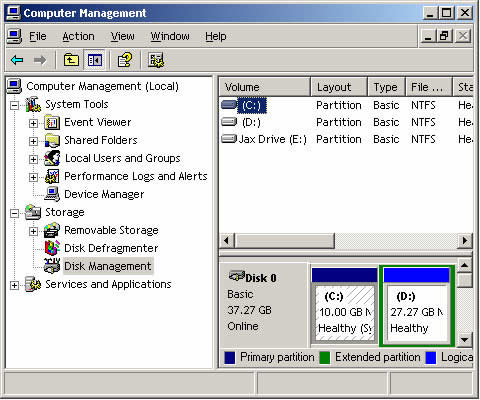
  4. Once the COMPUTER MANAGEMENT screen opens, just click on the DISK MANAGEMENT option; it is under the STORAGE category. A screen similar to the one below will appear.


In the disk management tool, you will see a listing of all your hard drives and how they are partitioned. The image above shows that I have two hard disks installed. The first disk, or DISC 0, has two partitions. Drive letter C has 24 GB NTFS, while Drive letter E has 87 GB NTFS. These drive letters were assigned during a previous partition. In the second drive, there is only one partition, which is the D: partition. There is 26 GB of unallocated and therefore useable space that can be used to make other partitions.

From the unused space, you can make a partition by following the steps below.
  1. Right click on the unallocated space.
  2. A new menu will come up, click on the NEW PARTITION option.
  3. A wizard on how you would like the partition to be created will open. On the first screen, press NEXT.
  4. On the second screen, you will be made to choose between a primary or extended partition. Detailed information about these kinds of partitions can be read at the tutorial listed above. Select Primary Partition, which is fine for most people, and press NEXT.
  5. The third screen will help you determine how much of the unallocated space you would like to use for the new partition. You can choose to use of all of space or you can stick with the default size. After you enter a size in the Partition size in MB: field, press NEXT.
  6. In the next screen, select a drive letter you want to assign your new partition, or you can also use the default letter given. The drive letter you chose will be how you access the partition later. Press NEXT when you are done.
  7. The next step will ask you how you would like the new partition to be formatted. The NTFS file system is advisable for most people. However, if you need a file system that is readable by older operating systems, such as DOS, Windows 95, Windows 98 or Windows ME, you should choose the FAT32 file system.
  8. You can type in a name for the Volume Label field, or you can leave it blank. This name will be associated with the new partition.
  9. After you press the NEXT button, a summary screen will appear. If you are satisfied with the partition you created, press FINISH to complete the creation and formatting of the new hard disk partition.
When the computer is done formatting and partitioning your hard drive, you will be prompted back to the Disk Management screen. Here you will see the new partition you have made and the drive letter on the computer. You can now begin using this drive.

Deleting a Partition in Windows

If you have an existing partition in your hard drive, and you wish to delete this for purposes only known to you, it is important for you to know that you will lose all the data in your partition.

Follow the steps below:
  1. Click on the START button and select the CONTROL PANEL. If you do not have this shortcut on the START menu, open MY COMPUTER and click on the CONTROL PANEL.
  2. Double-click on the ADMINISTRATIVE TOOLS icon and open COMPUTER MANAGEMENT.
  3. If the CONTROL PANEL is in Category view, click on PERFORMANCE AND MAINTENANCE, then click on ADMINISTRATIVE TOOLS, and lastly double-click on the COMPUTER MANAGEMENT icon.
  4. Once the COMPUTER MANAGEMENT screen opens, just click on the DISK MANAGEMENT option; it is under the STORAGE category.
  5. Click on the partition you wish to delete and then choose the DELETE PARTITION option.
  6. A confirmation box will appear, and ask you if you are sure you wish to continue. Press YES if you are only sure that you want to delete the partition. Remember, if you press yes, all the data in the partition will be deleted.
  7. After you press YES, the partition will be deleted. You can choose to exit the program or create a new partition.

How to Do the XBox 360 Towel Trick


Overheating is the main cause of the XBox 360 3 red lights error.The early XBox 360 models were all made with power and good looks in mind, unfortunately, Microsoft didnt really think about the heat being generated by all of these components packed into a tight space.There are 2 cooling fans at the rear but they arent up to the job and the case is very narrrow, and doesnt allow enough heat to escape. The towel trick then is an attempt to fix this overheating problem.

The xbox 360 towel trick basically involves you wrapping a towel around your console and letting it heat up again.Although it seems hard to believe there is some good theory behind the madness of wrapping your XBox 360 up in a towel. The only sure way to fix the 3 red light error is to get a good guide from the internet and perform the fix yourself.There are many good guides available to download, all for about the cost of a game, and they need no special tools to do the fix, which takes abot an hour.Best thing sbout it is the fix is permanent and above all safe.

Alright, you've got your hair all over the floor now because your dear old Xbox 360 is showing the dreaded - RROD! While this is happening, you already have your best friends - COD4, FFXIII, Gears of Wars 2 waiting for you on the rack but you can't play them!

Step-by-step guide on how to do the Xbox 360 towel trick:
  1. You'll need to confirm that your Xbox 360 actually has the 3 red lights, and not any other errors.
  2. Prepare 3 towels, like those that you normally use for showers.
  3. Stay focus, and remove everything from the Xbox 360, including the hard drives, wired controllers, games, etc, however, DO NOT remove the power supply.
  4. Take the towels, make sure they are dry, and wrap them around your Xbox 360 consoles.
  5. Next up, plug on the Xbox 360's power supply and turn your console on. Don't worry if you notice the usual Red ring of death. Continue letting it run for 15-20 minutes.
  6. Afterwards, turn off the Xbox 360 including the power supply and let it cool down for 10 minutes or longer.
  7. Plug everything back in and turn it on again. It should work by now.

NOTE: I'll have to warn you that this method involves heating the internal chips to extremely high temperatures so that broken solder points get resoldered again and warped components get reshaped. So instead of a fix, you're actually damaging your Xbox 360 further, and expect to see RROD in another few days.

How to utilize PC access software?

There is no limit of technology as it is expanding its wings amazingly and achieving new milestones with every single day. You won't believe that you can access or store data even from other remote locations. It is really a valuable technology especially for the business professionals as they can use the data which is not available on their machines. Yes, it is possible by using Remote Access Software which is extremely beneficial for the employees and employers. It comes at a very inexpensive price tag and can be installed easily on the computer, making it one of the most affordable and attractive option for the business professionals.

For external and internal use

Most companies or businesses often utilize Remote Access software to allow their staff to work either from home or another location. These software options have amazing features as these enable telecommuting, streamline workflow and improve the collaboration efforts. There are numerous companies available which utilize this software as an outdoor device in order to repair computers remotely or to work with clients on other locations. These software options can also be used to connect with devices which are internet capable including smart phones, PDAs and computer tablets.

What are the security concerns?

If you are using Remote Desktop Software, make sure that the connection is secure. Some professionals often use smart cards so as to offer secure authentication. Actually, most smart cards need authorization credentials along with a security code, allowing users to sign in securely. All types of communication via remote access must be encrypted and different kinds of access are also available. But just make sure that all the unused network ports or protocols are disabled.

Some benefits of remote access

The remote access software helps employees transfer business files and makes it easier for them to collaborate with projects. Also, the data can be used from a multitude of sources which, simply put, means that web presentations and teleconferencing are very easy to incorporate. The software can be used and copied in a variety of locations, and implemented from different computers. There are different kinds of PC remote access software available to be installed or purchased online. Some companies even offer a free trial which thus helps in choosing the right program. The cost depends upon the feature of software; the more the features, the higher the cost. Therefore, it can be said that PC remote access is very easy to use and everyone can install it without any technical assistance.

PC build and repair DVDRip 815MB


This is 2 hours video (tutorial) which gives you very useful information about the change in computer components and the changing in technology; how to build and repair your computer almost without needing any help.

Features:
File size : 815 MiB
Duration : 2h 5mn
Overall bit rate : 905 Kbps

Video:
Format : AVC
Codec ID : avc1
Duration : 2h 5mn
Bit rate : 768 Kbps
Width : 480 pixels
Height : 320 pixels
Display aspect ratio : 1.500
Frame rate : 25.000 fps
Resolution : 24 bits
Colorimetry : 4:2:0
Scan type : Progressive
Bits/(Pixel*Frame) : 0.200
Stream size : 689 MiB (84%)

Audio:
Format : MPEG Audio
Format profile : Layer 3
Codec ID/Hint : MP3
Duration : 2h 5mn
Bit rate mode : Constant
Bit rate : 128 Kbps
Channel(s) : 2 channels
Sampling rate : 44.1 KHz
Resolution : 16 bits
Stream size : 115 MiB (14%)


Download:

How to Setting System Restore In Vista and Se7en

If you want to change when or how often System Restore creates an automatic restore point then this is how.
Click on the Start Orb and in the 'Search' box type Task Scheduler and click 'Enter'.
In the scheduler click on 'Task Scheduler Library' then 'Microsoft'.


Click on Windows then scroll down to 'System Restore' and click on that.
You will now see SR Ready (or Queued) Multiple Triggers Defined, double click on that.


Click on the 'Triggers' tab and you will see the default settings are to run at Startup and midnight everyday.


If you never have your computer on at midnight ( I dont, I am at work) then you can change it to a more suitable time by double clicking on the task.
On the next window that opens you will see the default settings, dont change 'On a Schedule' but you can now change the start time by clicking on either the 'Up' or the 'Down' arrows.


It is advisable to leave the rest of the default settings under this tab as they are but obviously the choice is yours.
Click on the 'Conditions' tab and you will see that the computer idle time is 10 minutes by default, this is the time the schedule will wait after your machine is idle before running.
The 'Wait for idle for' means the schedule will run up to the time you have set, in my case 23 hours.


The 'History' tab shows you when the task has been run in the past and the outcome.


Click on the 'Triggers' tab again and double click on 'At Startup'.
You will see a delay of 30 minutes has been set, this is so it wont run while your machine is booting so leave it on that setting.


Click on 'OK' then close the Sheduler and any changes you made will be saved.

Although it worth changing the default midnight time to a more suitable time, I wouldnt change the settings much more than that.

Sony VAIO E Series VPCEA45FG Overview

Sony VAIO E Series VPCEA45FG/L is equipped with14 (35.6 cm) wide (WXGA: 1366×768) VAIO Display, LED backlight Real Wide display that offers ample space for Web surfing and gaming. Wireless connection means you can easily link to the Internet and accessories. Features a Matte finish with a palm rest accented by fine glittering particles.It has Genuine Windows® 7 Home Premium 64-bit (English Version) Operating system, 4 GB RAM and Hard Disk 320 GB, 512 MB DDR3 Graphics Card, Intel® Core™ i5-480M Processor 2.66 GHz with Turbo Boost up to 2.93 GHz*1.It is available in india at price Rs 46,990.

Features
  • Intel® Core™ i5-480M Processor 2.66GHz with Turbo Boost up to 2.93GHz
  • Genuine Windows® 7 Home Premium 64-bit
  • 14 (35.6 cm) wide (WXGA: 1366×768) VAIO Display, LED backlight
  • ATI Mobility Radeon™ HD 5470 Graphics
  • Instant web browsing: Quick Web Access button
  • Bundled media player “Media Gallery” & creation software “PMB VAIO Edition”

Features and Specifications:

Model

Sony VAIO E Series VPCEA46FG/L

Operating System Genuine Windows® 7 Home Premium 64-bit (English Version)
Processor Name Intel® Core™ i5-480M Processor 2.66 GHz with Turbo Boost up to 2.93 GHz*1
RAM 4 GB (2 GB x 2) DDR3 SDRAM*2 (upgradeable up to 8 GB*3)
Hard Disk Drive 320 GB*4 (Serial ATA, 5400 rpm)
Graphics Accelerator Intel® HD Graphic  512 MB DDR3
Display 14 (35.6 cm) wide (WXGA: 1366×768) VAIO Display, LED backlight
Battery 6 Cell, VGP-BPS22 Lithium-ion battery: up to 2.5 hours of use*8
Weight 2.37 kg (including the supplied battery)
Sound Speaker intel® High Definition Audio
Web Cam MOTION EYE™ (Resolution: 640 x 480, Effective Pixels: 0.3 Mega pixels)
Price Rs 46,990